Quickstart
Get up and running with Cloud Cost Analyzer in under 5 minutes.
Prerequisites
- AWS or Azure credentials configured locally
- One of: macOS, Linux, or Windows (WSL)
Step 1: Install the CLI
- Quick Install (Recommended)
- Docker
- Binary Download
curl -sSL https://releases.dragonfractal.com/install.sh | sh
docker run --rm dragonfractal/cca:latest --version
Download from releases.dragonfractal.com:
# Linux (x86_64)
curl -LO https://releases.dragonfractal.com/cca/latest/cca-linux-amd64.tar.gz
tar -xzf cca-linux-amd64.tar.gz
sudo mv cca /usr/local/bin/
Verify the installation:
cca --version
Step 2: Grant Read-Only Access
cca setup provisions the read-only permissions a scan needs. Preview exactly
what it will grant with --output-template (nothing is changed), then apply it
with --deploy.
--deploy creates IAM roles / service principals, which needs cloud-admin
rights you may not have. If so, run cca setup --provider <aws|azure> --output-template to get the exact read-only policy and hand it to whoever
provisions access. The provider guides cover the rights each path needs and the
common enterprise gotchas (AWS SSO, Entra security defaults):
AWS and
Azure.
- AWS
- Azure
# See the exact IAM policy CCA will create (read-only; nothing is changed yet)
cca setup --provider aws --output-template

# Create the read-only IAM role via CloudFormation (needs the AWS CLI configured)
cca setup --provider aws --deploy
--deploy creates a CloudCostAnalyzerRole with read-only access and prints its
ARN. Prefer to bring your own credentials? CCA uses the standard AWS credential
chain:
export AWS_ACCESS_KEY_ID=your-key
export AWS_SECRET_ACCESS_KEY=your-secret
export AWS_REGION=us-east-1
# or run: aws configure
# or attach an EC2/ECS/Lambda IAM role (auto-detected)
# See the roles and az commands CCA will use (nothing is changed yet)
cca setup --provider azure --output-template

# Create a read-only service principal and assign the roles (needs `az login`)
AZURE_SUBSCRIPTION_ID=<your-subscription-id> cca setup --provider azure --deploy
--deploy creates a service principal with Reader and Cost Management
Reader on the subscription, then prints the credentials to export:
export AZURE_SUBSCRIPTION_ID=...
export AZURE_TENANT_ID=...
export AZURE_CLIENT_ID=...
export AZURE_CLIENT_SECRET=...
Prefer to configure it yourself? Any DefaultAzureCredential source works
(az login, a service principal, or a managed identity).
Re-running --deploy is safe: it reuses the existing service principal and
re-ensures its roles. Add --rotate-secret if you need a fresh secret.
GCP scanning is on the roadmap and not supported yet, so there is no GCP setup step.
Step 2.5: Get an API Key
Sign up at cca.dragonfractal.com, verify your email, and create an API key from the dashboard. (API keys and real scans unlock once your email is verified.) Then set it:
export CCA_API_KEY=cca_free_your_key_here
Step 3: Run Your First Scan
# Scan AWS resources in your default region
cca scan --api-key $CCA_API_KEY -r us-east-1

# Scan a specific AWS region
cca scan --api-key $CCA_API_KEY -r us-west-2

# Or with Docker
docker run --rm \
  -e AWS_ACCESS_KEY_ID -e AWS_SECRET_ACCESS_KEY \
  dragonfractal/cca:latest \
  scan --api-key $CCA_API_KEY -r us-east-1
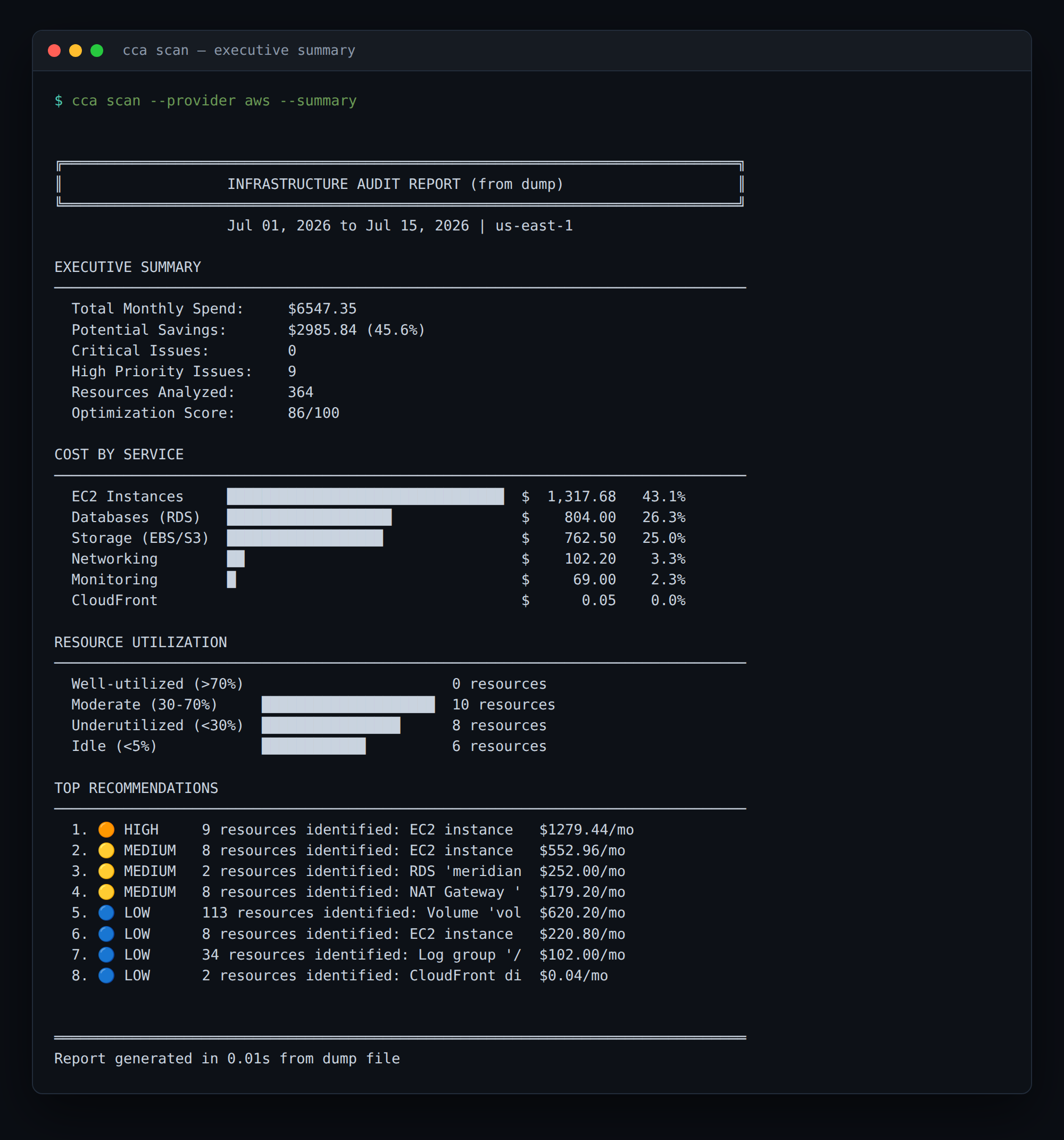
Example output. The report opens with an executive summary — total spend, potential savings, and the top opportunities by service:
...followed by the detailed findings, each with the evidence behind it and a remediation step:
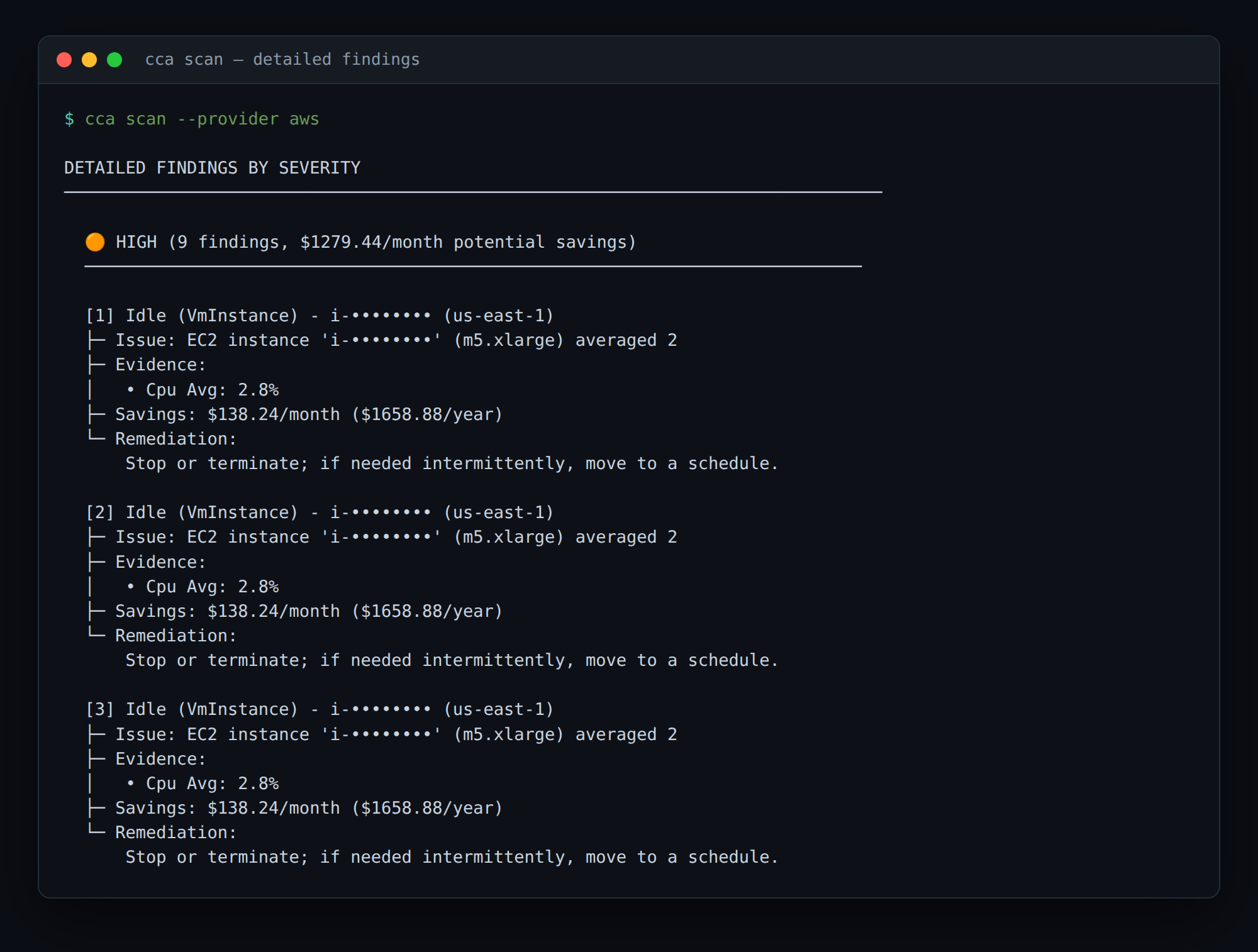
Resource IDs are redacted in these example images.
Step 4: Export Results
# Save as JSON
cca scan --provider aws --output json --output-file results.json

# Save as a Markdown report
cca scan --provider aws --output markdown --output-file report.md

# Generate a PDF report
cca scan --provider aws --output pdf --output-file report.pdf
Step 5: Sync with Dashboard (Optional)
For team collaboration and tracking optimization progress over time, sync your scans to the cloud dashboard.
Create an API Key
- Sign up at cca.dragonfractal.com
- Go to Settings > API Keys
- Click Create API Key
- Copy the key
Run Managed Scan
# Set your API key
export CCA_API_KEY=cca_live_xxxxx

# Run scan in managed mode
cca scan --provider aws --mode managed

# Or pass the key directly
cca scan --provider aws --mode managed --api-key cca_live_xxxxx
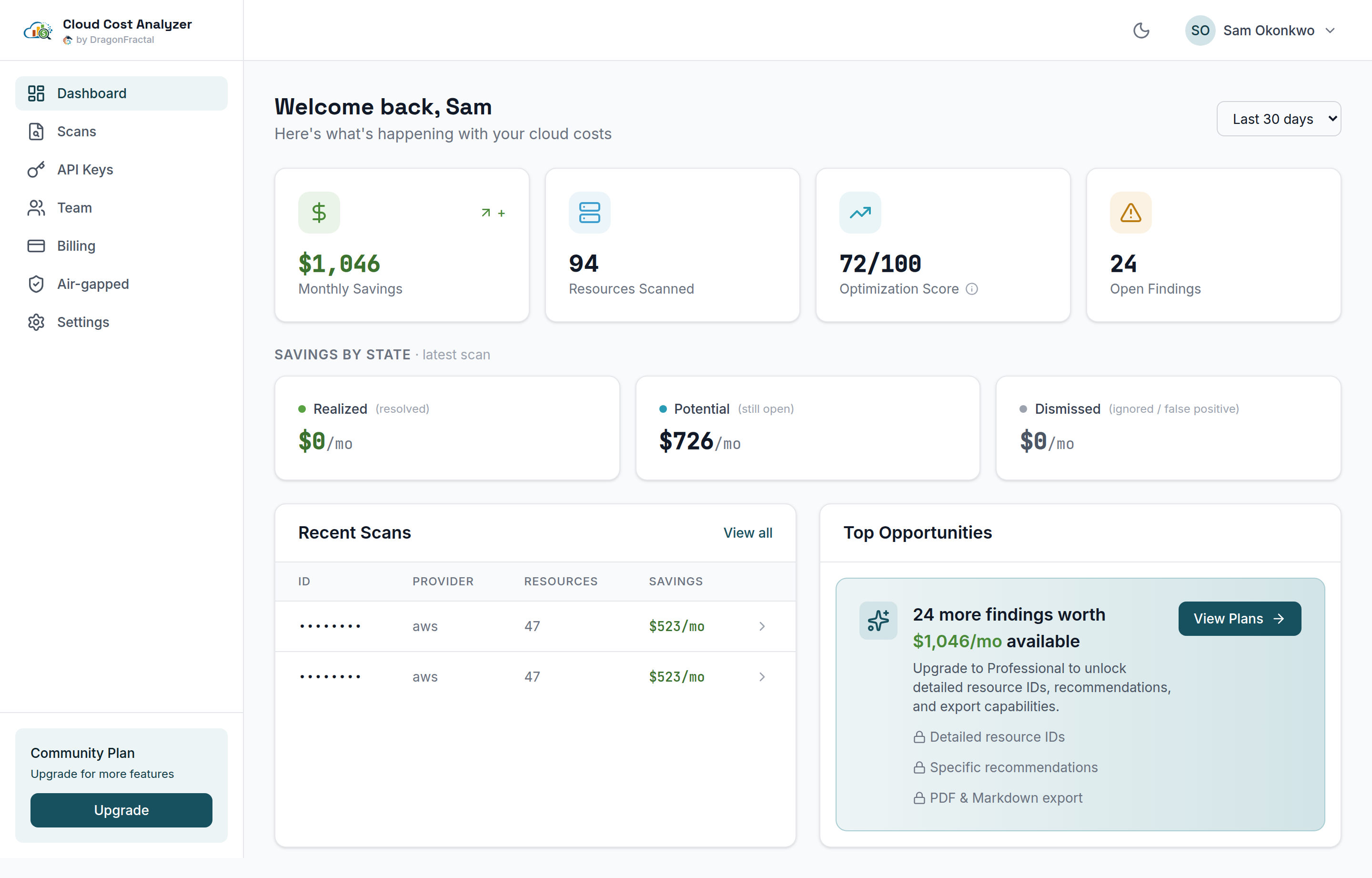
View your scan results in the Dashboard — savings, optimization score, and findings tracked over time across your team:
Next Steps
- CLI Command Reference - Full list of commands and options
- CI/CD Integration - Automate scans in your pipeline
- AWS Provider Guide - Deep dive into AWS scanning